How to Fix Lag Issues in Car Parking Multiplayer 2026
Car Parking Multiplayer is fun when the game runs smoothly, but lag can ruin the whole experience. Your car may freeze, controls may respond late, FPS may drop, or the game may feel slow during online rooms. This problem is common on Android, iOS, PC emulators, and even some high-end devices.
The good news is that lag is usually fixable. Most lag issues happen because of weak internet, high graphics settings, low storage, background apps, overheating, outdated software, or crowded multiplayer servers.
In this guide, you will learn how to fix lag issues in Car Parking Multiplayer using simple and practical methods. These tips can help you improve FPS, reduce freezing, and enjoy smoother gameplay.
What Is Lag in Car Parking Multiplayer?
Lag means a delay between your action and the game’s response. For example, you press the brake, but the car stops late. You turn the steering, but the car reacts slowly. Sometimes the game freezes for a few seconds, or the screen starts stuttering.
Common Signs of Lag
- Car moves slowly or freezes
- Steering and brake respond late
- FPS drops during multiplayer mode
- Game crashes after update
- Long loading screen
- Black screen or stuck screen
- Delay while joining online rooms
Why Does Car Parking Multiplayer Lag?
Car Parking Multiplayer can lag for many reasons. The most common causes are low RAM, full storage, poor internet, high graphics, outdated game files, and device overheating.
1. Weak Internet Connection
2. Low Device Performance
3. Full Storage Space
4. Background Apps Consuming RAM
5. Outdated Game Version
6. High Graphics Settings
7. Low Battery and Battery Saver Mode
8. Device Overheating
9. Crowded Multiplayer Servers
10. PC Emulator Performance Issues
How to Fix Lag Issues in Car Parking Multiplayer
1. Close Background Apps
Before opening the game, close all unnecessary apps. Apps like TikTok, YouTube, Chrome, Facebook, WhatsApp, and file managers use RAM in the background. This reduces game performance.
Close recent apps, clear RAM, and then open Car Parking Multiplayer again. This simple step can instantly make gameplay smoother.
2. Lower Graphics Settings
High graphics look beautiful, but they can create lag on low-end and mid-range phones. If your game is freezing, lower the graphics first.
Go to game settings and reduce:
- Resolution
- Shadows
- Reflections
- Texture quality
- Smoke effects
- Bloom
- Motion blur
- Anti-aliasing
- Draw distance
For smooth gameplay, use balanced or low graphics. This will improve FPS and reduce heating.
3. Clear Game Cache
Cache files build up over time and slow down the game. Clearing the cache removes temporary files without deleting your progress.
For Android:
Go to Settings > Apps > Car Parking Multiplayer > Storage > Clear Cache
After clearing the cache, restart the game. This can fix lag, freezing, and loading problems.
4. Free Up Internal Storage
Car Parking Multiplayer needs free storage to run properly. If your phone storage is almost full, the game may lag or crash.
Try to keep at least 2GB to 4GB free storage. Delete unused apps, old videos, duplicate photos, and unnecessary downloads.
Do not run the game with storage almost full because Android needs free space for temporary files.
5. Restart Your Phone
Restarting your phone clears temporary memory and closes hidden background processes. If your game suddenly starts lagging, restart your device before changing advanced settings.
This is one of the easiest fixes for FPS drops and random freezing
6. Update the Game
Old versions may contain bugs, crashes, and performance issues. Always use the latest version of Car Parking Multiplayer.
New updates usually improve stability, fix glitches, and optimize gameplay. If you are using a MOD APK, make sure you install a stable and updated version from a safe source.
7. Update Your Device Software
An outdated Android, iOS, or emulator version can create compatibility issues. Check your phone system update and install the latest available version.
For PC users, also update:
- Emulator
- Graphics driver
- Windows updates
- Android engine inside emulator
Updated software helps the game run better.
8. Turn Off Battery Saver Mode
Battery saver reduces CPU and GPU power. This saves battery but makes the game slow.
Before playing, turn off:
- Battery saver
- Power saving mode
- Ultra battery mode
- Background restriction for the game
Use performance mode or game mode if your phone has this option.
9. Keep Battery Above 30%
When your battery is low, the phone automatically reduces performance. This can cause FPS drops and lag.
For best performance, play when your battery is above 30%. Avoid playing while charging because charging creates heat, and heat can also cause lag.
10. Keep Your Device Cool
Overheating is a major reason for lag. When your phone gets hot, it slows down performance to protect the hardware.
To keep your device cool:
- Take short breaks after 30–45 minutes
- Avoid playing in direct sunlight
- Remove a thick phone cover
- Reduce screen brightness
- Do not play while charging
- Use a cooling fan if needed
Cool devices perform better in racing and multiplayer games.
11. Use a Stable Internet Connection
Online mode needs a strong connection. Weak internet causes ping issues, delayed movement, and multiplayer lag.
Use Wi-Fi instead of mobile data if possible. Sit near the router and avoid downloading files while playing. Also, disconnect extra devices from Wi-Fi if the connection is slow.
12. Choose a Nearby Server
If you play on a far server, your ping becomes high. High ping creates delay in online rooms.
Always choose the nearest server or region. Nearby servers reduce latency and make multiplayer gameplay smoother.
13. Play in Private Rooms
Crowded rooms create more load because many cars, players, and objects appear at the same time. This can cause lag, especially on low-end phones.
Try private rooms with fewer players. If you only want to practice parking, drifting, or driving, use offline mode.
14. Reduce In-Game Activity
Too many vehicles, heavy traffic, and crowded areas can reduce FPS. If the game starts lagging, move away from busy places.
For smoother gameplay:
- Avoid crowded city areas
- Avoid rooms with too many cars
- Reduce unnecessary custom effects
- Use simple camera angles
- Avoid switching cars again and again
15. Check Device Compatibility
Some devices cannot handle high graphics or modded versions smoothly. If your phone has low RAM or an old processor, lag can happen even after optimization.
Recommended basic requirements:
- 4GB RAM or higher
- Good processor
- Enough storage
- Updated Android/iOS
- Stable internet connection
If the MOD version lags too much, try the original version or a lighter build.
16. Use Game Mode or Game Booster
Many phones have built-in game mode. It improves performance by blocking notifications, clearing RAM, and giving more power to the game.
You can also use trusted game booster tools, but avoid unknown apps that ask for unnecessary permissions.
17. Fix PC Emulator Lag
If you play Car Parking Multiplayer on PC using an emulator, adjust emulator settings.
Try these settings:
- Allocate more RAM
- Allocate more CPU cores
- Enable virtualization from BIOS
- Use performance mode
- Update graphics driver
- Close Chrome and other heavy apps
- Lower emulator resolution
A properly configured emulator can run the game much more smoothly.
What Is FPS and Why Does It Matter?
FPS Levels Explained
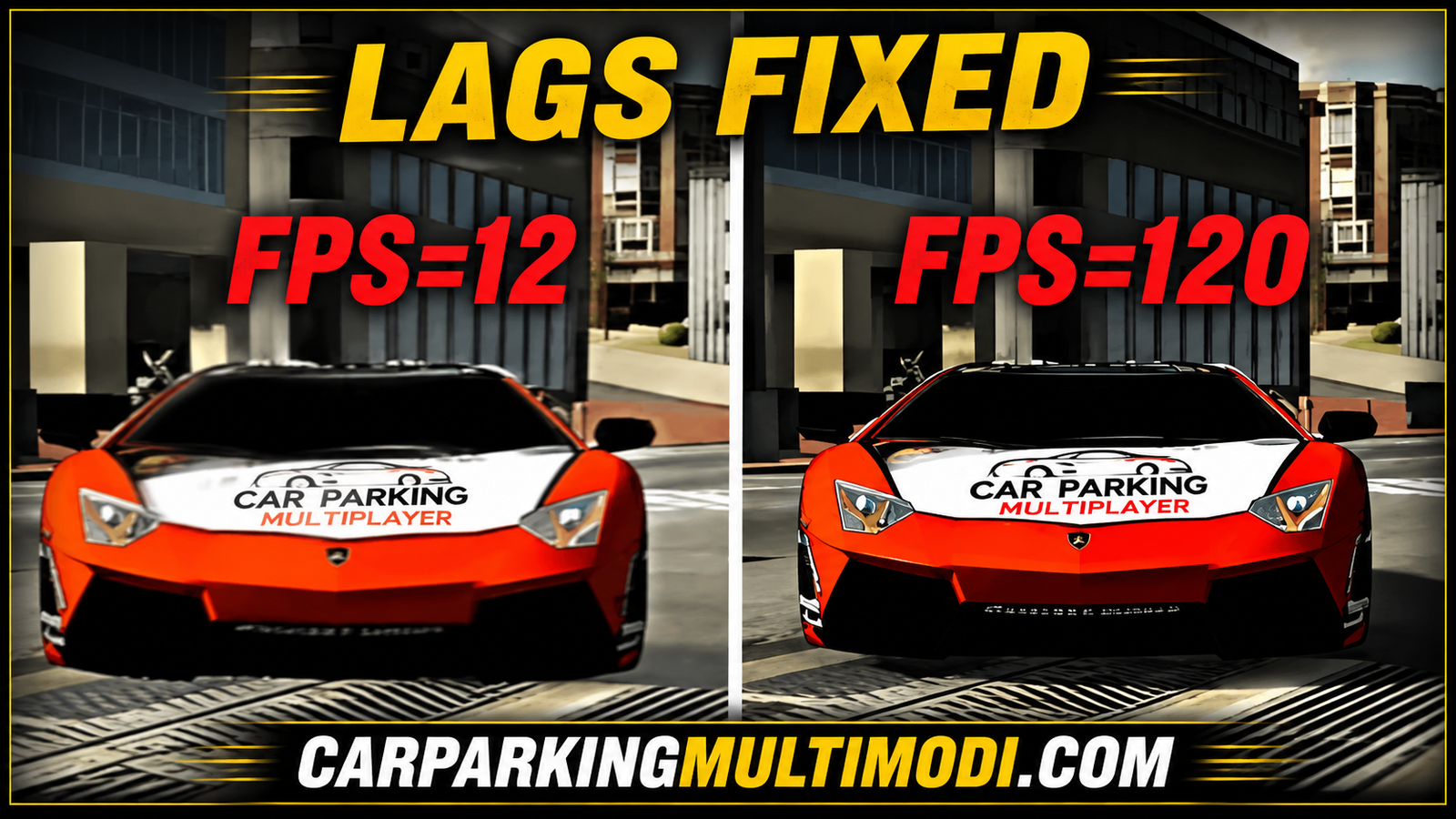
FPS means Frames Per Second. It shows how many frames your device displays every second. Higher FPS makes gameplay smoother.
- 30 FPS = playable
- 60 FPS = smooth
- 90 FPS or 120 FPS = very smooth on supported devices
If FPS drops, the game starts stuttering. To improve FPS, lower graphics, close background apps, keep the device cool, and free up storage.
Quick Android Tips to Reduce Lag
- Turn off power-saving mode
- Clear cache weekly
- Keep 2GB+ free storage
- Restart phone before playing
- Use Wi-Fi for multiplayer
- Lower graphics settings
- Keep brightness medium
- Avoid playing while charging
- Update the game regularly
When Should You Contact Support?
If the game still lags after trying all fixes, contact the official support team. The issue may be related to your account, server, update bug, or device compatibility.
You can also check gaming communities where other players share fixes for new updates, emulator settings, and MOD APK issues.
Conclusion
Lag in Car Parking Multiplayer is annoying, but it can be fixed with the right settings. Start with simple steps like closing background apps, clearing cache, freeing storage, lowering graphics, and using a stable internet connection.
For better performance, keep your device cool, update the game, turn off battery saver, and play on nearby servers or private rooms. These small changes can make your gameplay smoother, faster, and more enjoyable in 2026.